User Guide
Data GatekeeperIntroduction
The Data Gatekeeper is an all-in-one change log, auditing, and data change approval and control system for Business Central.
Here are just a few of the things it can do.
Data Gatekeeper Setup
Each page or subpage in Business Central has a source table. For the Data Gatekeeper FactBox to appear on a page. We only need to add the table to the Data Gatekeeper Setup.
For read-only pages such as the Posted Sales Invoice (Sales Invoice Header 112), adding the table is all we need to do. When the Sales Header record is posted for a document of type Sales Order or Invoice, data is copied to this table. Since we don't normally alter data for posted records, there's nothing to monitor hence no additional setup is needed. We are simply adding it, so that the FactBox can appear. Our extension tracks this therefore, it will be able to show the related change logs.
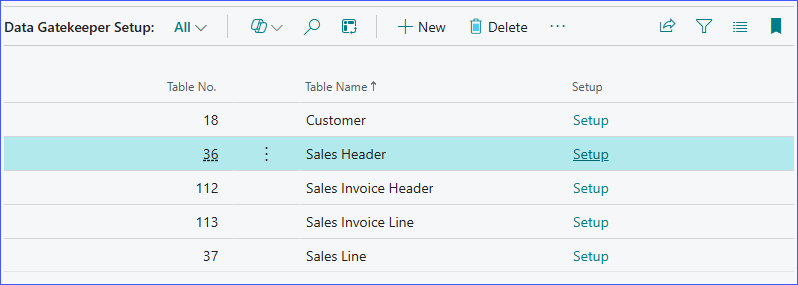
Pages such as the Sales Quote, Sales Order, Sales Invoice, etc. shares the same table (Sales Header 36). Adding the table will result in the Data Gatekeeper FactBox appearing on all of these pages. Since data can be altered in these pages, additional setup is warranted. Click Setup to open advance settings for the table.
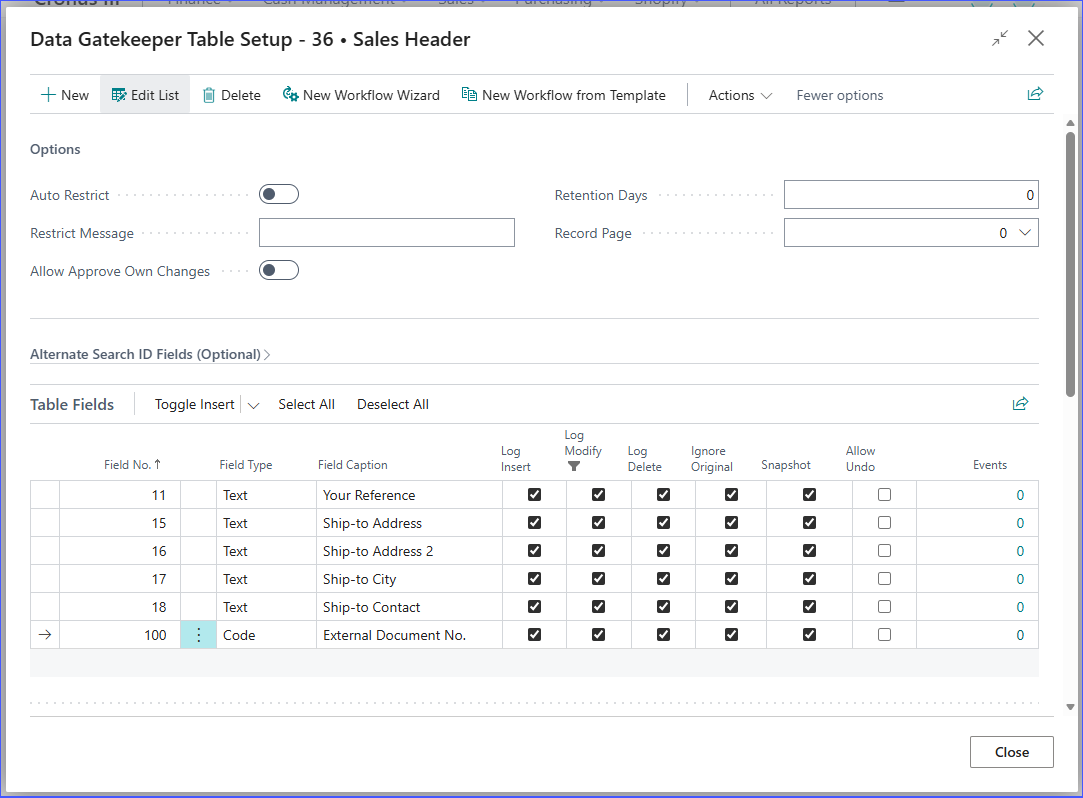
Settings
- Auto Restrict
- If enabled, the system will automatically add record restriction when change is detected, and remove the restriction when data is restored to its original state.
- Restrict Message
- This is the message that will appear in the Restricted Records page when a record is auto restricted. The default value is "This record is restricted due to unapproved changes." You can customize this message to provide more context or instructions to users who encounter restricted records.
- Retention Days
- The number of days from the log date the record will expire. This value effectively controls the record''s Log Expiration Date which can be used by the Retention Policy for table specific retention periods. Choose the 1 WEEK Retention Period policy and take the 7 day period into consideration when setting up this value.
- View Record Page
- If specified, this page will be used to view the record. This includes the link in the notification email to open the record that requires approval.
Approval Options
- Enable approval request for this record.
- If checked, users can request approval from the factbox for this record.
- Enable parent approval request for this record.
- If checked, users can request parent record approval from the factbox for this record.
- Include change log and comments in notification email.
- If checked, the notification email will include the list of changes, and comments from the approval comments when available.
- Allow to approve own changes.
- Users in the approvals list will always be able to approve their own change. This setting is only applicable under a multi-user approval scheme where there are at least 2 users in the list. If not checked, this will prevent the approval response from executing for the user if they are an approver as well as requester.
- Auto restrict parent on child record change or restrictions.
- If checked, when a child record is changed or restricted, the parent record will also be automatically restricted. When the child record is restored to its initial state, the restriction will be removed. The parent record restriction will also be automatically removed unless it has its own restriction.
- Auto commit and link pending logs to parent record approvals.
- Applicable only when the Parent Table No. is specified. If checked, when a parent record is approved, the system will automatically commit any uncommitted change logs for the child record and link those logs to the parent record approval. If not checked, you must set up an approval workflow for this record or some other event to commit the logs.
- Take a snapshot log of child when the parent record is approved.
- If checked, when a parent record is approved, the system will automatically take a Snapshot Log of the child record.
- Do not delete approval entries when record is deleted.
- If checked, approval entries and comments for this record will not be deleted when the record is deleted.
Alternate Search ID Fields
- Alternate Search Field 1-4
- Optionally choose up to 4 fields to use as the Record Search ID. This is useful for tables where the primary key (Record ID) is not a reliable identifier, such as journals, where primary key field values don't translate into ledger key values.
- It also plays a key role in records that are split into multiple tables when posted. For example, when posting a sales order, the Sales Invoice Header is used for capturing invoice detail while the Sales Shipment Header is used for capturing shipment detail. The extension can only be linked to 1 posting record, and the Sales Invoice Header was chosen. Setting the Alternate Search Field 1 to the "No." field for the Sales Header table and the "Order No." field for the Sales Shipment Header table will allow the extension to rely on the Alternate ID field to link and display the related data instead.
Link to Parent
You can optionally link this table (child table) to a parent table to enable event sharing or related record interaction. To establish the relationship, map the relevant fields between the child and parent tables so the system can locate the associated record.
- Table
- You can only specify the parent table.
- Link Field 1-4
- Specify the key fields between the 2 tables that will link the child record to the parent record.
Table Fields
- Log Insert
- Log the value when a record is inserted.
- Log Modify
- Log the value when a record is modified.
- Log Delete
- Log the value when a record is deleted.
- Ignore Initial
- Ignore the change if it is the first or initial value for the field. Even if the field was changed multiple times, it will be ignored as an initial value until Data Gatekeeper flushes or commits the change.
- Snapshot
- Use this option if you want to reduce stress on the system by not monitoring for every modification but rather, take a snapshot of field values when an event occurs, such as when an approval request is approved or a field value meets certain conditions. NOTE: Snapshots will not be taken of fields that have an initial value, and the Ignore Initial is checked.
- Allow Undo
- Allow users to undo the change/restore the value to what it was before. WARNING: This should only be set for fields that users can edit, not for fields that can only be programmatically set since it can potentially allow users to undo changes that were programmatically set.
- Events
- Allows you to conditionally run events when the field's value changes. The number indicates how many events were setup for the field. Click on the field value to bring up the Field Events setup screen.
Field Events
- Custom
- This is only applicable if you need more power and have custom code that you've developed. By subscribing to our custom event, this will execute your custom code.
- Send an email.
- Error
- Display an error message which will prevent the user from updating the field's value.
- Flush Ignore Initial
- This tells Data Gatekeeper to treat all new changes for the record as a change, except when the original value is zero or blank, where it will still be treated as an intial value until a value is set.
- Message
- Display a message but doesn't prevent the user from updating the field's value.
- Notification
- Display a message in the form of an unobtrusive notification as opposed to a popup message.
- Add Restriction
- Add a record restriction with a specific message such as, "Amounts over 10K requires approval.". Conditionally set the event to occur only if the Amount field is over 10K, for example. NOTE: This applies only if another restriction doesn't already exist for the record.
- Remove Restriction
- Remove a record restriction if it has the specific message such as, "Amounts over 10K requires approval.". Conditionally set the event to occur only if the Amount field is less than 10K, for example.
- Take a Snapshot
- This tells the system to take an immediate snapshot of all fields that have snapshot enabled, and immediately commits the log. NOTE: The system relies on pending change logs to automatically restrict/unrestrict the record. If auto restriction is turned on for this record, this will effectively unrestrict the record.
Subscription Events
Defining restrictions on a record does not automatically prevent actions. Restrictions must be validated during the relevant operations to be enforced. For tables that do not include built-in restriction checks, subscribe to the provided events to validate related records as required.
Take a Snapshot events will cause the system to take a snapshot of fields on the child table that has snapshot enabled.
The system automatically selects the parent table for the subscription when it can determine the correct table. Otherwise, you must select the appropriate table. Selecting an incorrect table may result in an error or event that is not applicable. If the parent table is the same as the child table, then field mappings are not necessary.
You must map the relevant fields between the parent and child tables so the system can identify the corresponding record to apply the event to.
Data Gatekeeper FactBox
Displays pending and committed changes for the current record. The information shown depends on the record context.
For example, on a Purchase Order, two FactBoxes may be displayed—one for the header and one for the lines. This separation ensures a clear distinction between header and line data to prevent confusion.
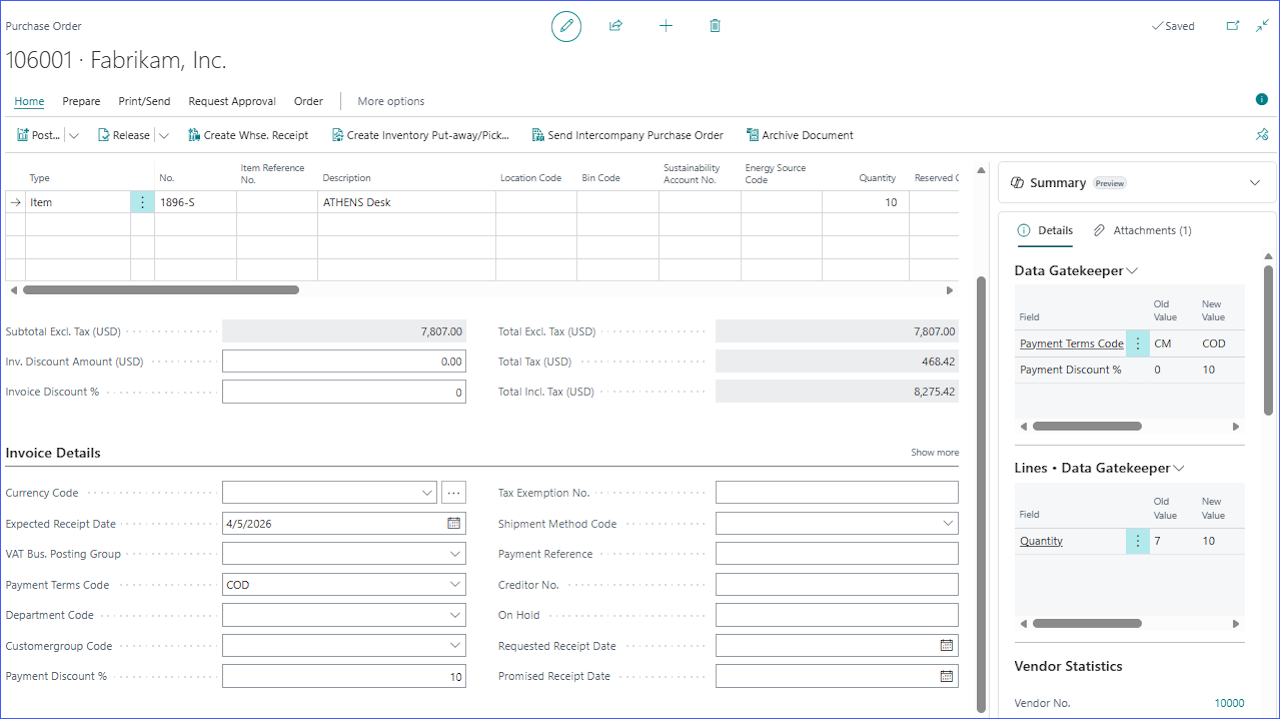
The Restricted Records page displays one FactBox that combines header and line changes for simplified review.
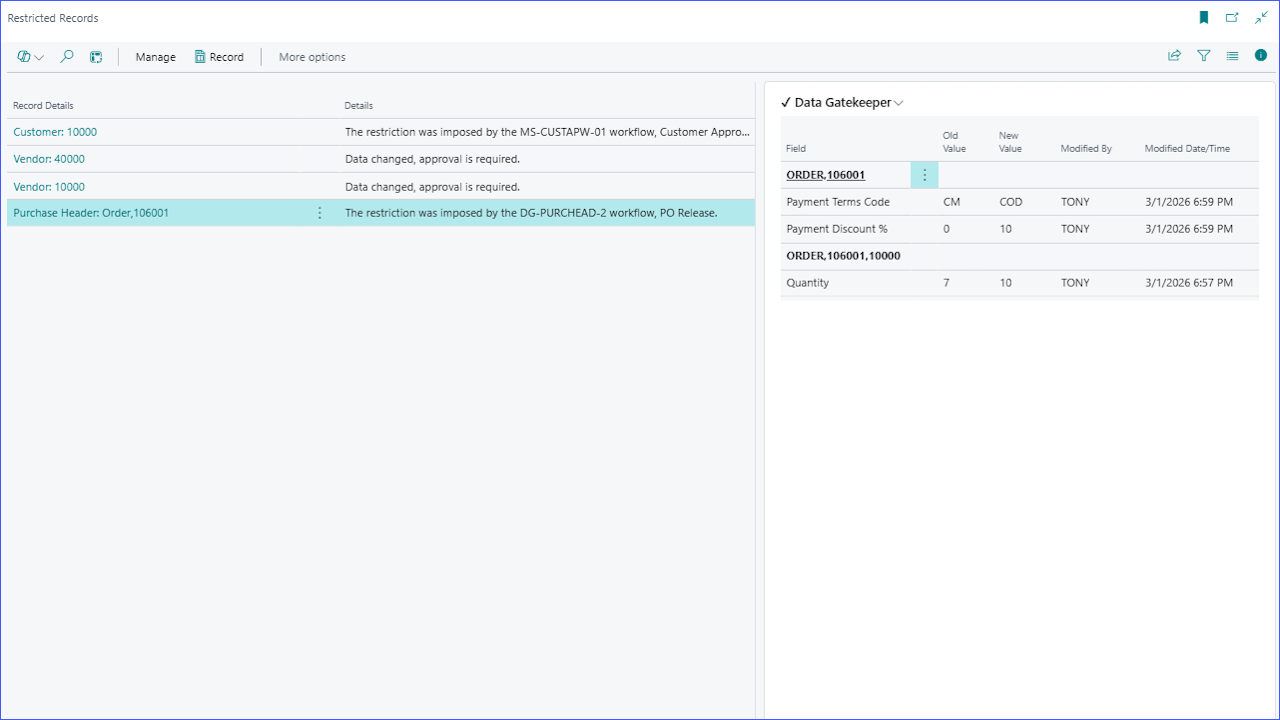
Menu Options
- Undo Change
- Restore the selected entry's value back to its original value if allowed.
- Data Trail
- Opens the Data Trail to see committed change logs for the record.
- Zoom
- Opens a larger view of the log.
- Open in Excel
- Export the contents of the factbox to Excel.
- Approvals
- This includes the standard approval-related actions that are available on most pages, centralized for convenience and extended to pages that do not include built-in approval functionality.
Data Trail
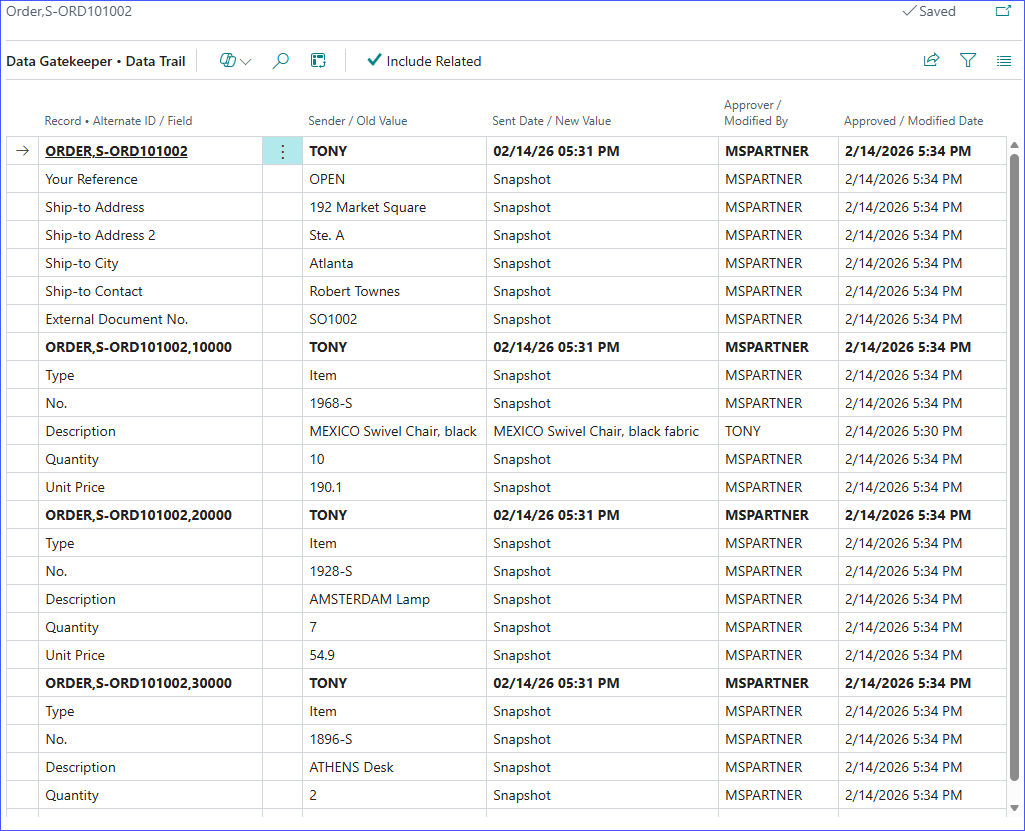
To view committed change logs for the current record, open the Data Trail page from the Data Gatekeeper FactBox menu.
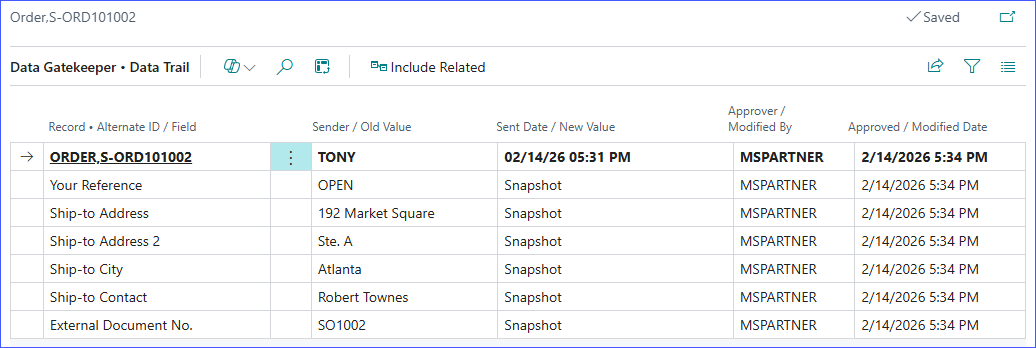
For records with a parent-child relationship, check "Include Related" to display the associated child records.
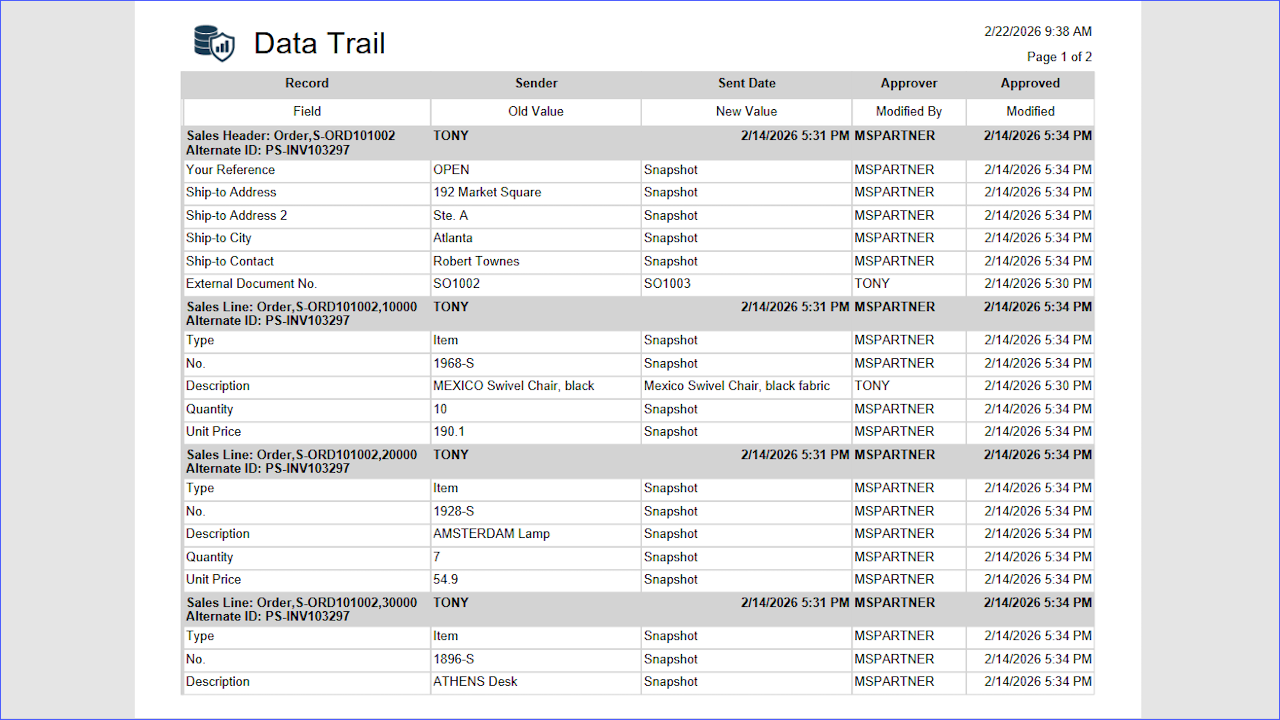
To view change logs for multiple records, use the Data Trail Report.
Data Gatekeeper Workflow Wizard
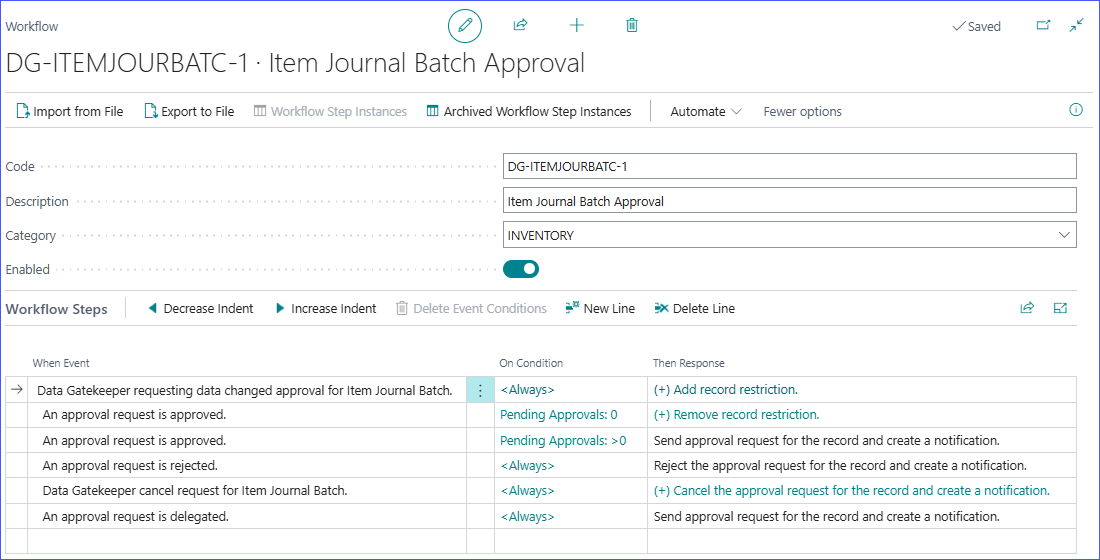
Use the workflow wizard to create approval workflows in just a few easy steps.
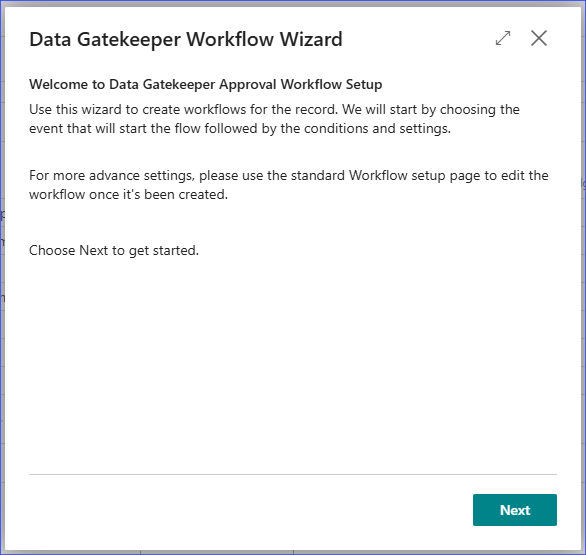
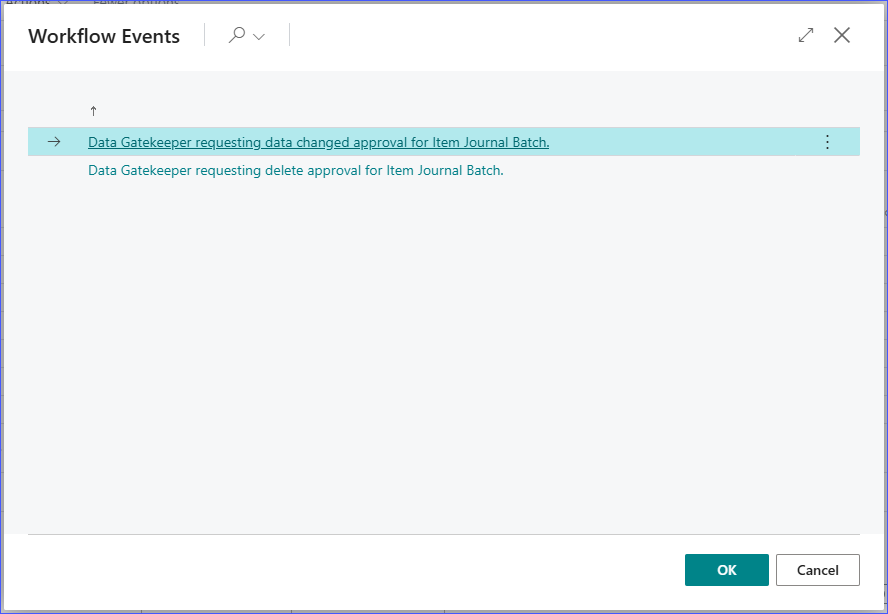
The wizard will only show events applicable to the selected table.
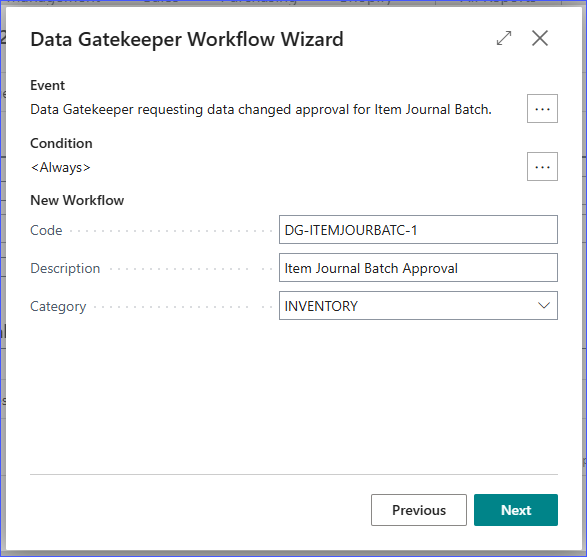
Choose the event, set the conditions, give it a description, and choose a category.
Additional settings.
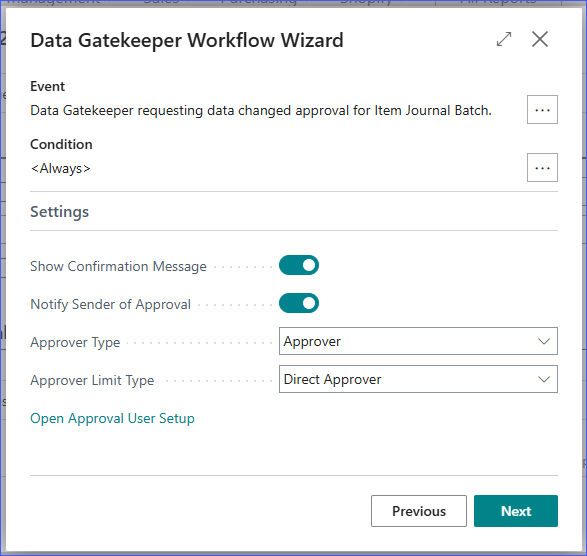
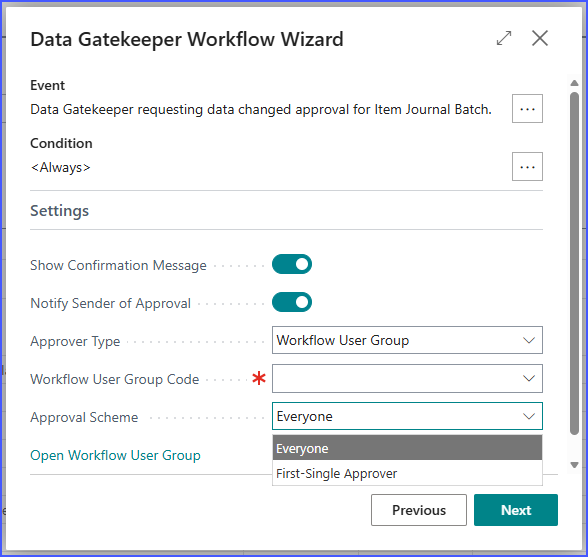
- Show Confirmation Message
- If enabled, the system displays a confirmation message to inform the user that a request has been sent.
- Notify Sender of Approval
- When enabled, the user is notified when the request is approved.
- Approver Type
- The approver scheme to use for this workflow.
- Approver Limit Type
- Applicable when the Approver Type is Salesperson/Purchaser or Approver. Choose how approvals are routed.
- Workflow User Group Code
- Applicable when the Approver Type is Workflow User Group. Select the group that will handle this approval.
- Approval Scheme
- Applicable when the Approver Type is Workflow User Group. Select from the 2 schemes below.
- Everyone - Everyone in the group must approve.
- First-Single Approver - The 1st person in the group to approve will approve for all.
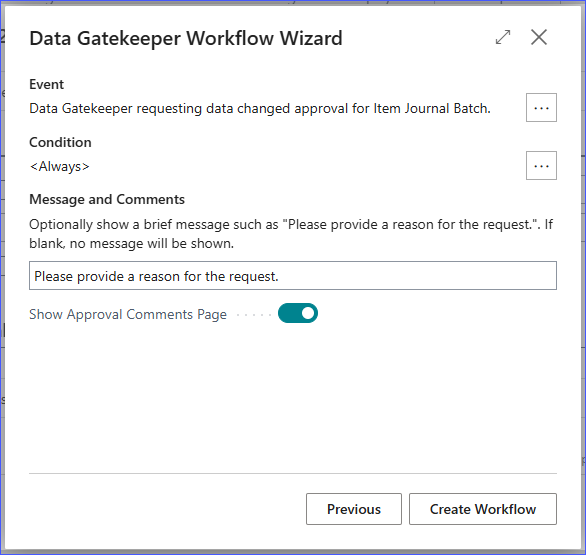
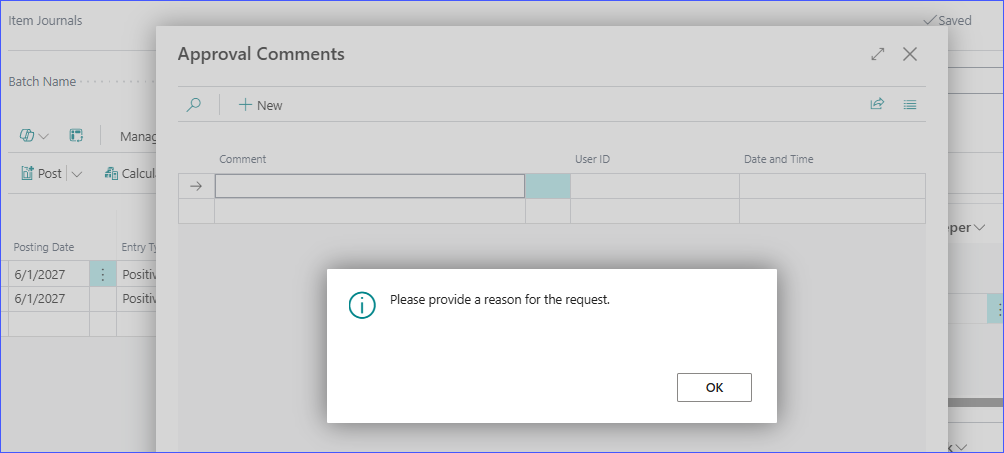
To allow comments on a request, enable Show Approval Comments Page. When enabled, the comments page appears before the request is sent, allowing the requester to add comments. If the option to include comments in notification emails is also enabled, the comments are included in the email sent to approvers.
Once the workflow is created, the standard Workflow card will appear to allow more advance settings.